

Introduction
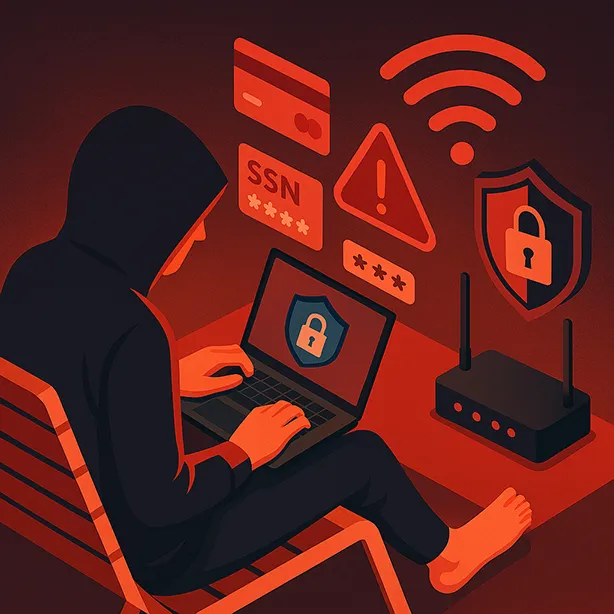
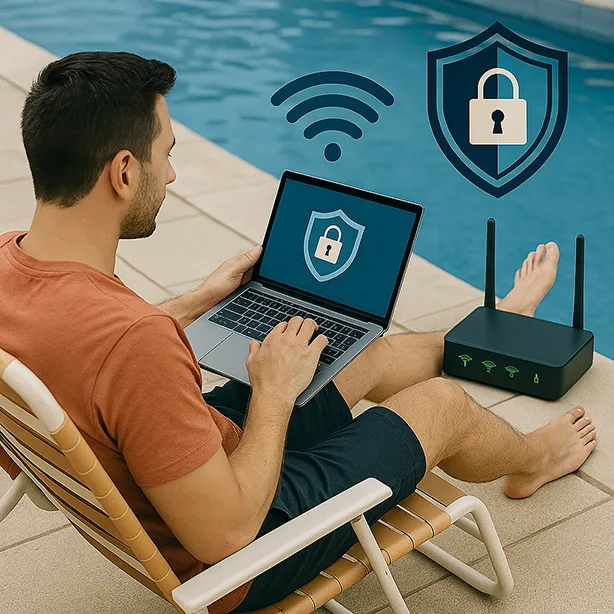
Wireless networks bring freedom and flexibility, letting you stay connected from anywhere—even poolside or in the Jacuzzi. But that convenience can expose you to identity theft.
This guide reveals the risks of unsecured Wi-Fi and shows you simple ways to protect your data and privacy.
The Convenience of Wireless Networks
Work and Play Anywhere
Wireless networks have revolutionized the way we live and work. With broadband internet access, a wireless router can provide instant global connectivity. This freedom allows you to:
- Work Remotely: Complete projects from the comfort of your home or while traveling.
- Stream Entertainment: Enjoy movies, music, and TV shows without being tethered to a cable.
- Stay Connected: Maintain communication with colleagues, friends, and family regardless of your location.
The Dark Side of Convenience
While wireless networks offer numerous benefits, they also present significant security risks. Many wireless units do not come with security features enabled by default, leaving your network vulnerable to various threats.
The Threat of Identity Theft
What is Identity Theft?
Identity theft occurs when someone steals your personal information, such as your name, social security number, or credit card details, to commit fraud or other crimes. In the context of wireless networks, identity thieves can intercept your data as it travels through the airwaves.
How Wireless Networks Facilitate Identity Theft
- Unsecured Networks: If your wireless network is not secured, anyone within range can access it and potentially intercept your data.
- War Drivers and War Chalkers: These individuals actively seek out unsecured wireless networks. War drivers use wireless equipment to find networks, while war chalkers mark public areas to indicate the presence of an unsecured network.
- Neighborly Interference: Even well-meaning neighbors can inadvertently slow down your network or access your personal data if your network is not secured.
Common Wireless Network Threats
Hackers and Cybercriminals
Hackers can exploit unsecured networks to gain access to sensitive information, such as:
- Personal Data: Names, addresses, and social security numbers.
- Financial Information: Credit card details and banking information.
- Business Data: Confidential company information and customer data.

Neighborly Interference
Your neighbors might accidentally connect to your network, leading to:
- Slow Network Speeds: Multiple devices using your bandwidth can significantly reduce your internet speed.
- Unauthorized Access: Neighbors may inadvertently access your personal files and data.
Business Vulnerabilities
Many small businesses use consumer-grade wireless equipment, which often lacks robust security features. This can result in:
- Data Breaches: Sensitive company and customer data becoming compromised.
- Financial Loss: The cost of recovering from a data breach can be substantial.
Steps to Secure Your Wireless Network
1. Enable Network Encryption
WPA3: The latest and most secure encryption standard for wireless networks. It provides stronger data protection and enhanced security features compared to its predecessors.
How to Enable:
- Access your router’s settings through a web browser.
- Navigate to the wireless security settings.
- Select WPA3 as the encryption method.
- Create a strong, unique password for your network.
2. Change Default Router Settings
Default SSID and Password: Routers come with default network names (SSID) and passwords, which are easily guessable. Changing these can significantly enhance your network’s security.
How to Change:
- Log in to your router’s admin panel.
- Locate the wireless settings and change the SSID to something unique and unidentifiable.
- Create a strong, complex password for your network.
3. Enable Network Firewall
Router Firewall: Most routers come with a built-in firewall that can help protect your network from external threats.
How to Enable:
- Access your router’s settings.
- Navigate to the firewall or security settings.
- Enable the firewall and configure it to block incoming connections from unknown sources.
4. Update Router Firmware
Firmware Updates: Router manufacturers regularly release firmware updates that include security patches and performance improvements.
How to Update:
- Check your router’s manufacturer website for the latest firmware version.
- Download the update and follow the instructions to install it on your router.
5. Disable WPS
Wi-Fi Protected Setup (WPS): While designed to make it easier to connect devices to your network, WPS can also be a security vulnerability.
How to Disable:
- Log in to your router’s admin panel.
- Navigate to the wireless settings.
- Find the WPS option and disable it.
6. Use a Guest Network
Guest Network: Creating a separate network for guests can help protect your main network from potential threats.
How to Set Up:
- Access your router’s settings.
- Look for the guest network or separate network options.
- Enable the guest network and configure its settings, ensuring it has a different password from your main network.
7. Monitor Network Activity
Network Monitoring: Regularly monitoring your network activity can help you detect and respond to potential security breaches.
How to Monitor:
- Use network monitoring tools provided by your router or third-party applications.
- Set up alerts for unusual activity, such as multiple devices connecting at once or data usage spikes.
Additional Security Measures
Use a VPN
A Virtual Private Network (VPN) encrypts your internet traffic, providing an additional layer of security, especially when using public Wi-Fi networks.
Benefits:
- Encrypts all data transmitted over the network.
- Hides your IP address, adding a layer of anonymity.
- Protects your data from eavesdroppers and hackers.
Enable MAC Address Filtering
MAC address filtering allows you to specify which devices are permitted to connect to your network based on their unique MAC addresses.
How to Enable:
- Access your router’s settings.
- Navigate to the wireless or security settings.
- Find the MAC address filtering option and enable it.
- Add the MAC addresses of your approved devices to the allowed list.
Regularly Change Network Passwords
Changing your network password regularly can help prevent unauthorized access, even if your password is compromised.
How to Change:
- Log in to your router’s admin panel.
- Navigate to the wireless settings.
- Change the network password to a new, strong, and unique password.
Conclusion
Securing your wireless network is crucial in today’s digital age, where identity theft and data breaches are increasingly common. By following the steps outlined in this guide, you can significantly enhance the security of your network and protect your personal and business data. Remember, the convenience of wireless connectivity should not come at the cost of your privacy and security. Take action today to safeguard your network and enjoy the benefits of wireless technology with peace of mind.





Leave a Reply