

Introduction
In today’s digital age, securing your home computer is more important than ever. With the increasing sophistication of online threats, it’s essential to take proactive measures to protect your personal information and ensure a safe browsing experience. This guide will walk you through the essential steps to secure your home computer, providing you with the knowledge and tools needed to stay safe online.
The Importance of Computer Security
Understanding Modern Threats
The internet is rife with threats that can compromise your computer’s security. From viruses and malware to spyware and phishing attacks, these threats can cause significant damage if left unchecked. Understanding the types of threats you face is the first step in protecting your computer.
Common Threats:
- Viruses: Malicious software that can replicate itself and spread to other computers.
- Malware: A broad category of malicious software that includes viruses, worms, Trojan horses, and ransomware.
- Spyware: Software that secretly monitors and collects personal or organizational information.
- Phishing: Fraudulent attempts to obtain sensitive information such as usernames, passwords, and credit card details by disguising as a trustworthy entity.
Essential Steps to Secure Your Home Computer
1. Keep Your System Updated
Windows Update: Ensuring your operating system and applications are up-to-date is crucial for maintaining security. Updates often include patches for known vulnerabilities that can be exploited by hackers.
How to Update:
- Windows: Use the built-in Windows Update feature to check for and install the latest updates. Enable automatic updates to ensure you never miss a critical patch.
- Applications: Regularly update your software applications, including web browsers, media players, and office suites. Many applications offer automatic update features.
Why It Matters: Keeping your system updated helps protect against known vulnerabilities and ensures you have the latest security features.
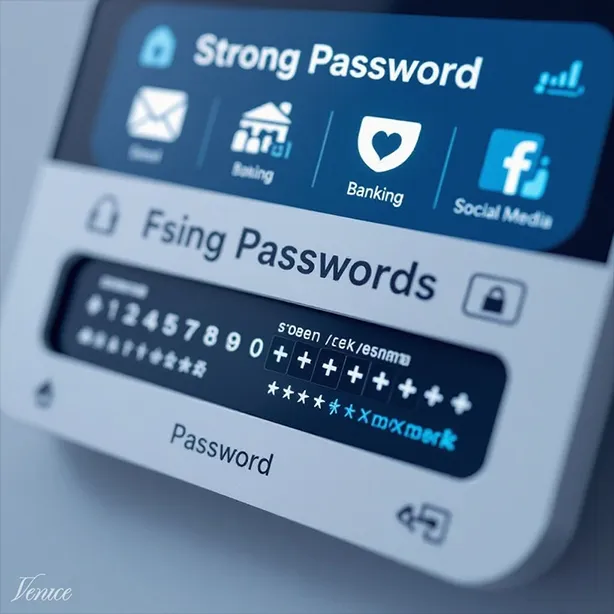
2. Use Strong, Unique Passwords
Password Best Practices:
- Length and Complexity: Use passwords that are at least 12 characters long and include a mix of uppercase and lowercase letters, numbers, and special characters.
- Uniqueness: Avoid using the same password for multiple accounts. If one account is compromised, others could be at risk.
- Regular Changes: Change your passwords regularly, especially for critical accounts like email and banking.
Password Managers: Consider using a password manager to generate and store strong, unique passwords. Tools like LastPass, 1Password, and Bitwarden can help you manage your passwords securely.
Why It Matters: Strong passwords are your first line of defense against unauthorized access to your accounts and personal information.
3. Install Reliable Anti-Virus Software
Choosing the Right Anti-Virus Software:
- Features: Look for software that offers real-time protection, regular updates, and minimal impact on system performance.
- Reputation: Opt for well-known brands like Norton, McAfee, or Bitdefender, which have a proven track record in malware detection and removal.
- Cost: While free anti-virus software can be effective, paid versions often offer additional features and better customer support.
Why It Matters: Anti-virus software is essential for detecting and removing malicious software that can compromise your computer’s security.
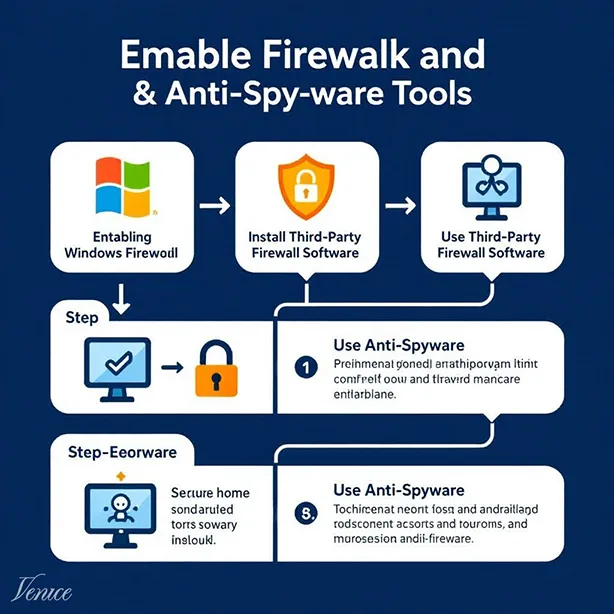
4. Enable a Firewall
Understanding Firewalls:
- Purpose: A firewall acts as a barrier between your computer and the internet, monitoring and controlling incoming and outgoing network traffic.
- Types: Firewalls can be hardware-based (built into your router) or software-based (installed on your computer).
How to Enable:
- Windows Firewall: Windows 10 and 11 come with a built-in firewall that you can enable through the Control Panel or Settings.
- Third-Party Firewalls: Consider using third-party firewall software like ZoneAlarm or Comodo Firewall for additional protection.
Why It Matters: A firewall helps prevent unauthorized access to your computer and protects against malicious traffic.
5. Use Anti-Spyware Tools
Choosing the Right Anti-Spyware Software:
- Features: Look for software that offers real-time protection, regular updates, and the ability to scan for and remove spyware.
- Reputation: Opt for well-known brands like Malwarebytes, Spybot Search & Destroy, or Windows Defender.
Why It Matters: Anti-spyware tools help detect and remove spyware that can monitor your activities and steal personal information.
6. Practice Safe Browsing Habits
Safe Browsing Tips:
- Avoid Suspicious Websites: Be cautious of websites that look suspicious or have poor reviews. Stick to reputable sites for downloads and online transactions.
- Use HTTPS: Ensure that websites use HTTPS (indicated by a padlock icon in the address bar) to encrypt data transmitted between your browser and the website.
- Be Wary of Phishing Attempts: Avoid clicking on links or downloading attachments from unknown or suspicious emails.
Why It Matters: Safe browsing habits help protect against phishing attacks and malicious websites that can compromise your computer’s security.
7. Regularly Back Up Your Data
Backup Best Practices:
- Frequency: Back up your data regularly, ideally daily or weekly, depending on how often you create or modify important files.
- Storage: Use external hard drives, cloud storage services, or network-attached storage (NAS) devices for backups.
- Verification: Regularly verify your backups to ensure they are working correctly and that your data can be restored if needed.
Why It Matters: Regular backups ensure that you can recover your data in case of a security breach, hardware failure, or other disasters.
Additional Security Measures
Enable Two-Factor Authentication (2FA)
What is 2FA?: Two-factor authentication adds an extra layer of security by requiring a second form of verification, such as a code sent to your phone, in addition to your password.
How to Enable:
- Accounts: Enable 2FA for your critical accounts, including email, banking, and social media.
- Apps: Use authenticator apps like Google Authenticator or Authy for generating 2FA codes.
Why It Matters: 2FA significantly reduces the risk of unauthorized access to your accounts, even if your password is compromised.
Use a Virtual Private Network (VPN)
What is a VPN?: A VPN encrypts your internet connection and routes it through a secure server, protecting your data from prying eyes and ensuring your online activities remain private.
How to Choose:
- Features: Look for VPNs that offer strong encryption, no-log policies, and a wide range of server locations.
- Reputation: Opt for well-known VPN providers like NordVPN, ExpressVPN, or CyberGhost.
Why It Matters: Using a VPN helps protect your data from hackers, especially when using public Wi-Fi networks.
Conclusion
Securing your home computer is essential for protecting your personal information and ensuring a safe browsing experience. By following the steps outlined in this guide, you can significantly improve your computer’s security and reduce the risk of falling victim to online threats. Stay proactive, stay informed, and make security a priority in your digital life.




Leave a Reply